![Preseem logo white-1.png]](https://docs.preseem.com/hs-fs/hubfs/Preseem%20logo%20white-1.png?height=40&name=Preseem%20logo%20white-1.png)
What It Is:
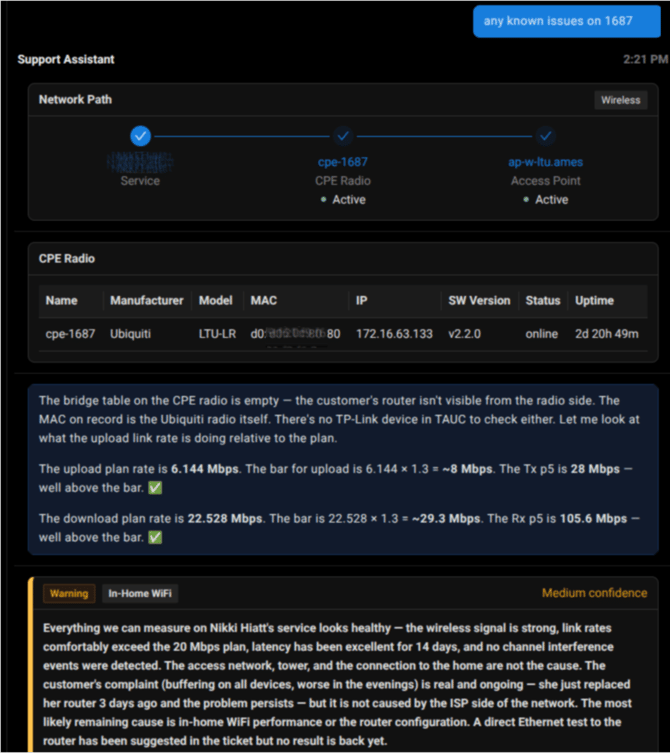
The Amplify Support Assistant [link] is an AI Assistant built into the Preseem app. It works beside your Customer Support Representatives (CSRs) and does the technical digging for them. A CSR asks a question in plain language, such as “1030873 is slow” or “Is this radio down?”, and the Assistant investigates that subscriber across your systems.
Its goal is to answer the question every support call starts with: Is the problem in your network, or in the customer’s home? That tells the CSR whether to escalate to Level 2 or continue working with the customer, and it reduces the time spent manually gathering data.
How It Works:The Assistant is an AI agent. It does not follow a fixed script. It has a set of tools, each of which reads data from one system, and it decides which tools to use based on the question and on what it has found so far. It works in a loop:
- Understand the question. It identifies the subscriber and the symptom the CSR describes.
- Gather evidence. It calls the tools it needs, for example, signal quality, link rates, latency history, tickets, or router status.
- Reason over the results. Each result shapes the next check, much like an experienced technician working through a ticket.
- Report. When it has enough evidence, it presents a diagnosis with the data behind it.
The data available to the Assistant depends on which of your systems are connected. Preseem data is always available; the others are added through integrations.
|
Source |
What it provides |
|---|---|
|
Preseem |
The network view includes whether the access point or CPE is online; RF signal at both ends (RSSI, SNR); link rate and stability; latency trends; DFS events, etc. |
|
Billing or CRM system |
Account, plan, ticket, work order, and history data. There are a few billing & CRM systems integrated with Amplify, such as Sonar, Splynx, Tarana TCS, etc. |
|
Fiber and router platforms |
The home and access equipment, for example, Calix (ONT/OLT, optics, home WiFi score), and TP-Link TAUC or Mercku (router status, WiFi clients, mesh). |
|
Device lookup |
Identifies a device’s manufacturer from its MAC address. |
The systems named above are examples. The list of supported integrations in your Preseem app is the authoritative one (see Integration).
The Diagnostics Panel:At the end of an investigation, the Assistant shows a diagnostics panel that summarises its findings:
- Severity: info, warning, or critical.
- Problem layer: where the problem most likely sits, such as the access network, the CPE, or in-home WiFi. When the data cannot settle it, the Assistant says the layer is unknown.
- Confidence: low, medium, or high, reflecting how strongly the evidence supports the conclusion.
- Root cause and evidence: a plain-language explanation and the specific readings it is based on.
- Recommended script: suggested wording the CSR can use with the customer.
Actions It Can Take:
Where your billing or CRM integration allows it, the Assistant can create a ticket or add a note for you. It always asks for your approval before writing anything to your systems, so nothing changes without a person confirming it.
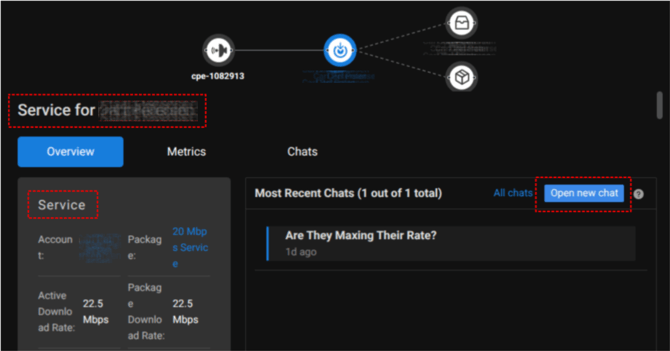
- From a subscriber’s account or service view. Earlier chats for that subscriber appear here, and you can start a new one with “Open new chat”.
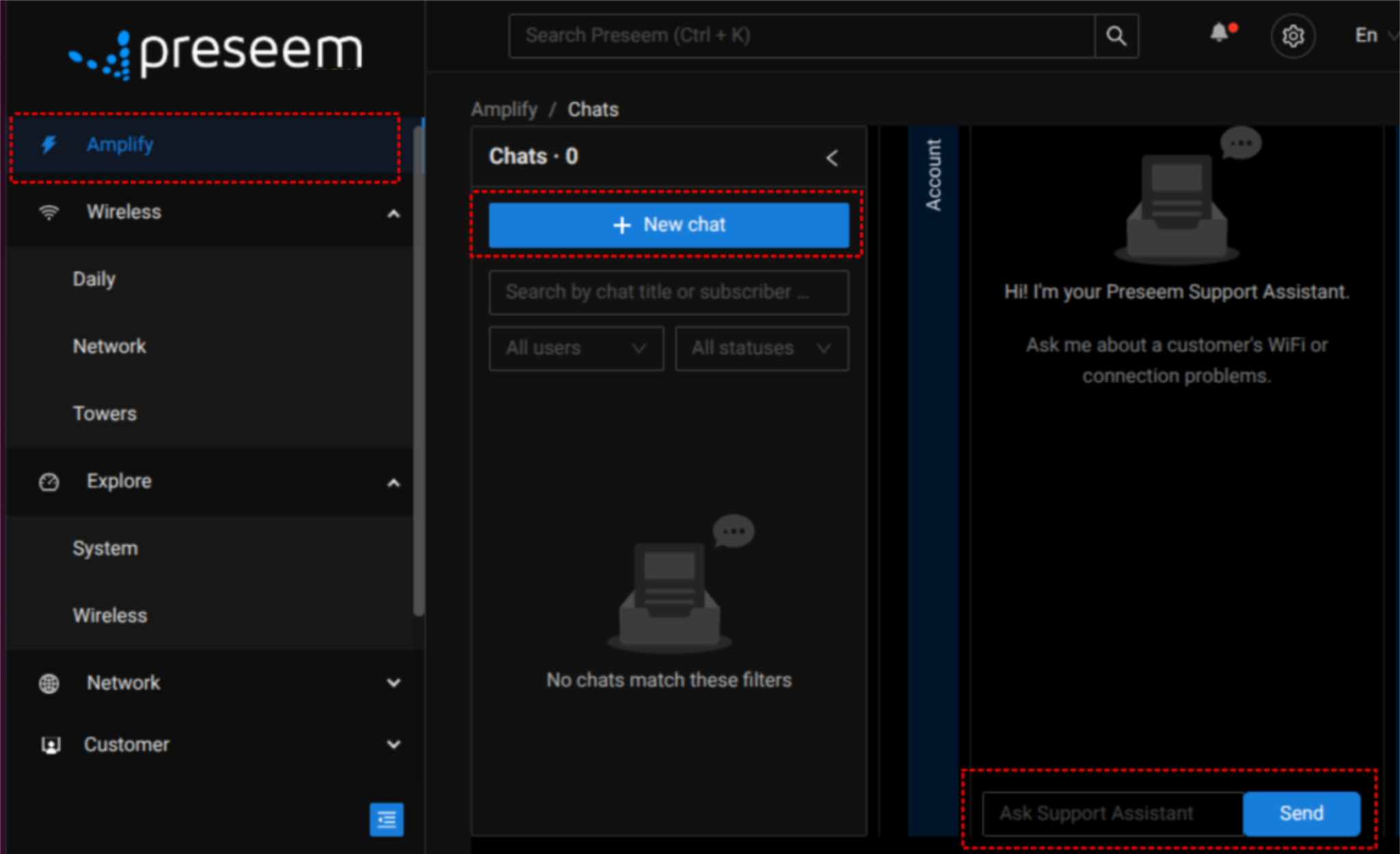
- From the Amplify tab on the left-hand side of the Preseem app. It lists every chat run by anyone at your company, so your team can see each other’s history.
How Chats Work:
- Each chat is for one subscriber investigation. If you entered the wrong identifier, correct it in the same chat and carry on.
- There is currently no limit on the length or duration of a chat, and you can return to an earlier chat and continue it. This may change in the future.
- Chats run by Preseem staff while helping you are not shown in your chat history and do not use your credits.
- Start from the right subscriber. Check the subscriber ID, name, or ticket number before you start. If the Assistant can’t find what you entered, correct it in the same chat. You won’t use another credit, because a chat uses one credit no matter how many times you refine the identifier. If you search by name (for example, “Smith”), the Assistant lists the subscribers that match so you can pick the right one.
- Describe the symptom. “Slow in the evenings on WiFi” gives the Assistant more to work with than just an account number.
- Read the evidence, not just the headline. The readings behind the diagnosis are the most useful part of the answer.
- Correct it when it’s wrong. If the Assistant is looking at the wrong device, or a reading conflicts with what you see, tell it. Your corrections are valuable input.
- Treat “unknown” as a real answer. Missing data means the Assistant could not see that part of the path, not that it is broken. Low confidence or an unknown layer is a cue for a manual check.
- Connect your systems. Billing, Ticket, and router integrations make the biggest difference to answer quality.
For how data is handled when you use the Support Assistant, including AI model training and your options, see the Preseem Terms of Service and the Preseem Privacy Policy. This document does not restate its contents.